
Position maps
Put your volunteers in the right place
— literally
Drop your positions onto a live map of your venue. On the day, volunteers open their phone and see exactly where their shift is — no printed maps, no group chats, no confusion.
For event organisers
Place positions in minutes
The position map editor lets you drag each role to its exact location on the venue map. You can even set different locations per shift — useful when a position moves between the morning briefing and the afternoon session.
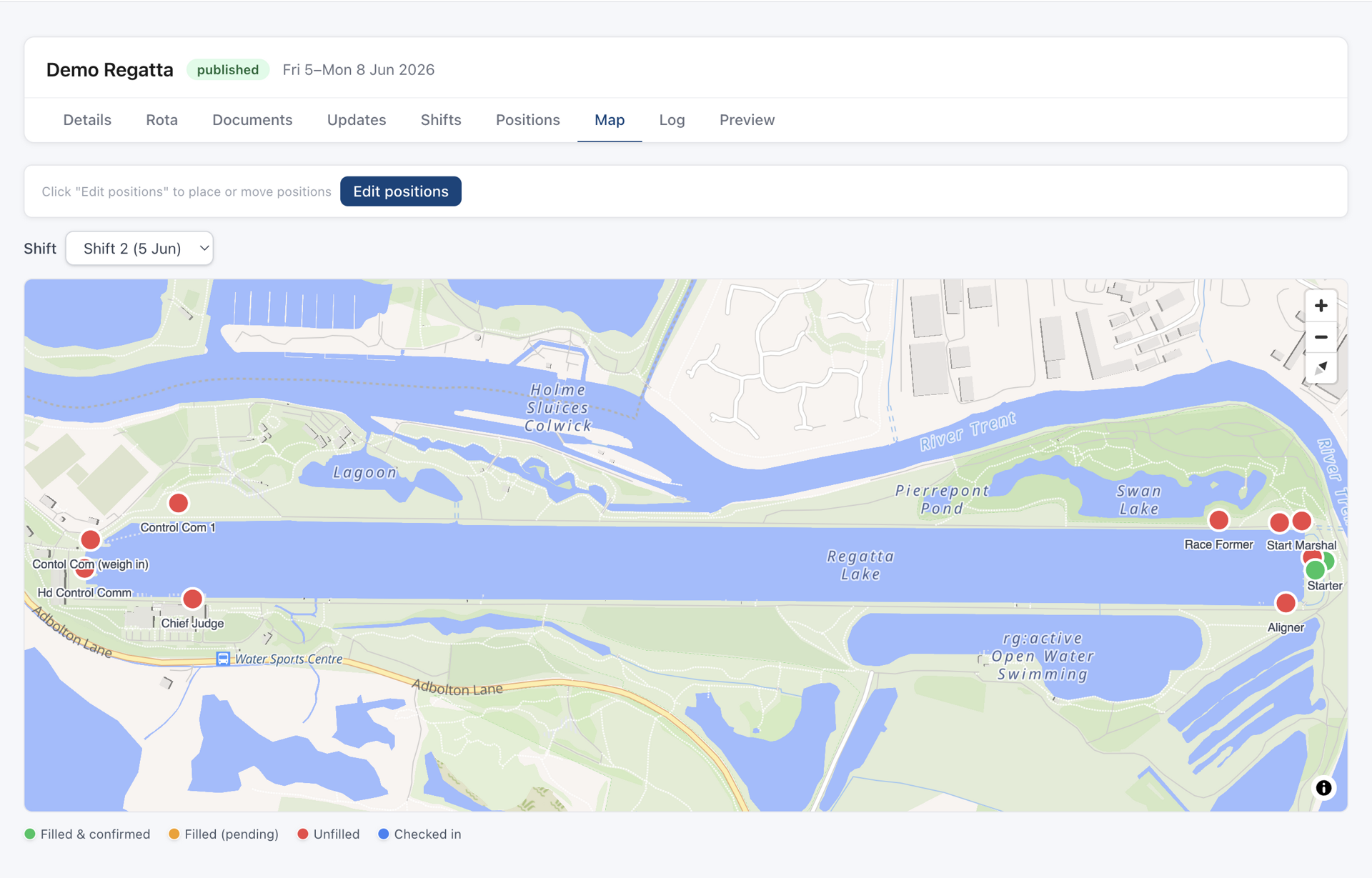
Drag-and-drop placement
Click anywhere on the map to place a position, then drag it to fine-tune the location. No coordinates required.
Per-shift locations
Some positions move between shifts. Set a different map pin per shift so volunteers always see the right spot.
Instant venue fit
The map opens centred on your placed positions — no hunting around for your venue every time you edit.
Remove with context
Remove a position from a single shift or from all shifts at once — your choice, with a single click.
For volunteers
Everything they need, on their phone
Volunteers open their personal event page and see a map of every shift they're assigned to — colour-coded by day, numbered by shift, with their position name labelled on the pin.
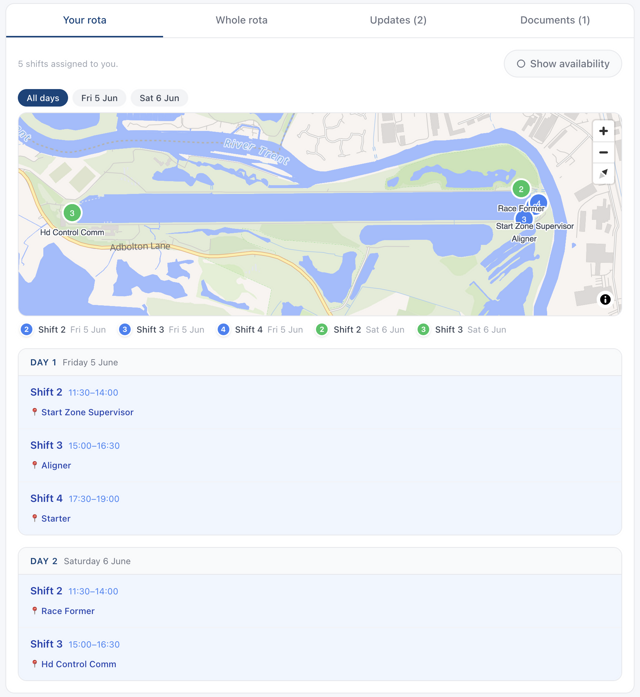
Colour-coded by day
Multi-day events get a distinct colour per day so volunteers can instantly distinguish their Wednesday shifts from their Thursday ones.
Shift numbers on pins
Each pin shows the shift number (1, 2, 3…) within the day. A clear legend below the map names every shift with its time.
Filter by day
Tap a day chip to zoom the map to just that day's positions. Perfect for quickly checking where to be tomorrow without the clutter of the full event.
No app, no download
The map works in any mobile browser. Volunteers just follow the link in their invite email — nothing to install.
How position maps fit into your workflow
Build your rota
Create positions and shifts in the rota builder. Assign your volunteers. Position maps work on top of whatever rota you've already built.
Drop pins on the map
Open the map editor, pick a shift, and place each position on the venue. Drag to refine. Repeat for any shifts where locations differ.
Volunteers see it automatically
The moment a position has map coordinates, it appears on every assigned volunteer's personal event page. No extra steps needed.
Common questions
Do I need to upload a custom venue map?
No — the map is powered by OpenStreetMap, so your venue is already on it. Just zoom to the right location and start placing pins.
What if a position is in the same place for every shift?
Place it once without selecting a specific shift and it becomes the default for all shifts. You only need to set per-shift overrides when the location actually changes.
Can volunteers see each other's positions on the map?
Volunteers see only their own assigned positions. If you've enabled full rota visibility, they can see the whole rota list — but the map shows their personal schedule.
Does it work for indoor venues?
The map uses standard street-level tiles, so it works best for outdoor venues with recognisable geography. For indoor events, you can still place rough pins at the building entrance as a wayfinding aid.
Show your volunteers where to be
Free for up to 10 people per event. No credit card needed.
Get started